If your club has a Snack Bar you can go cashless when members pre-pay for concession credit through your website.
Selling Concessions Credits
Create your own concession credit products, title them to your liking and set the increments you prefer. When a member purchases this product their account receives concession credit equal to the price option they selected ($10, $20, $30, etc). In the Product Editor, your club can also add in extra credit as an incentive…
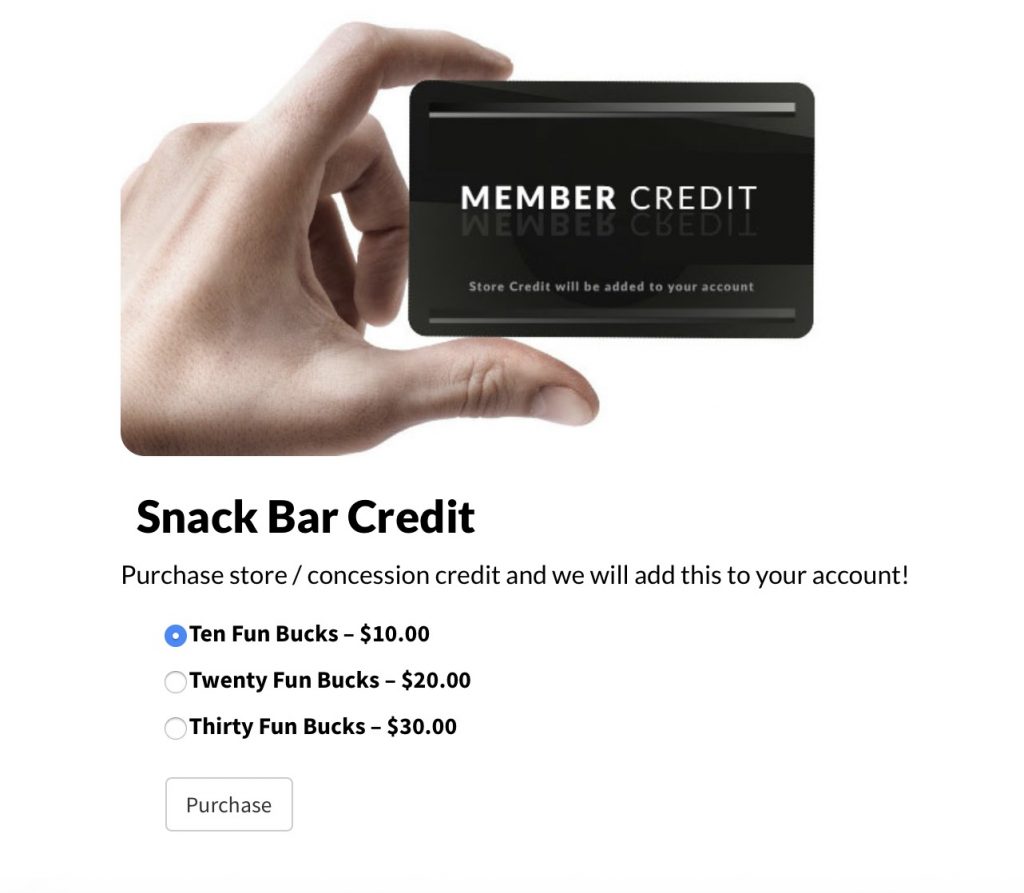
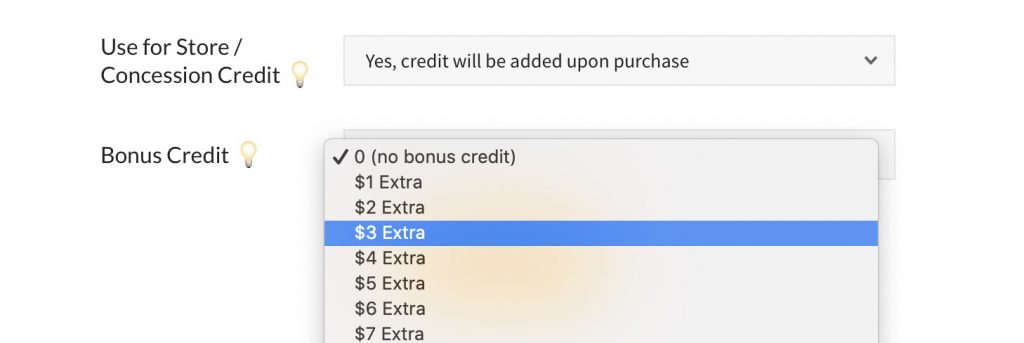
Members can check their credit balance by going to the Member Dashboard then Balances.
Using Credit for Orders
From our Front Desk iPad app, search for the member, then press the Create Order for Member button.
Attendants can choose to Add Item from Inventory or Set a cost for items not in inventory.
The first option will bring up the inventory selection screen. If your concession stand sells something that isn’t yet in Inventory, attendants can set an arbitrary amount for the order.
Once the Order Screen has a cost over $0.00, a Pay with Account Credit button will appear. This button will be disabled if the cost of the order exceeds the amount of credit the member has in their account (plus the amount members can go negative).
So for example, if members can have a negative balance of $25 and member John has $25 in his account, the most his order can total would be $50.
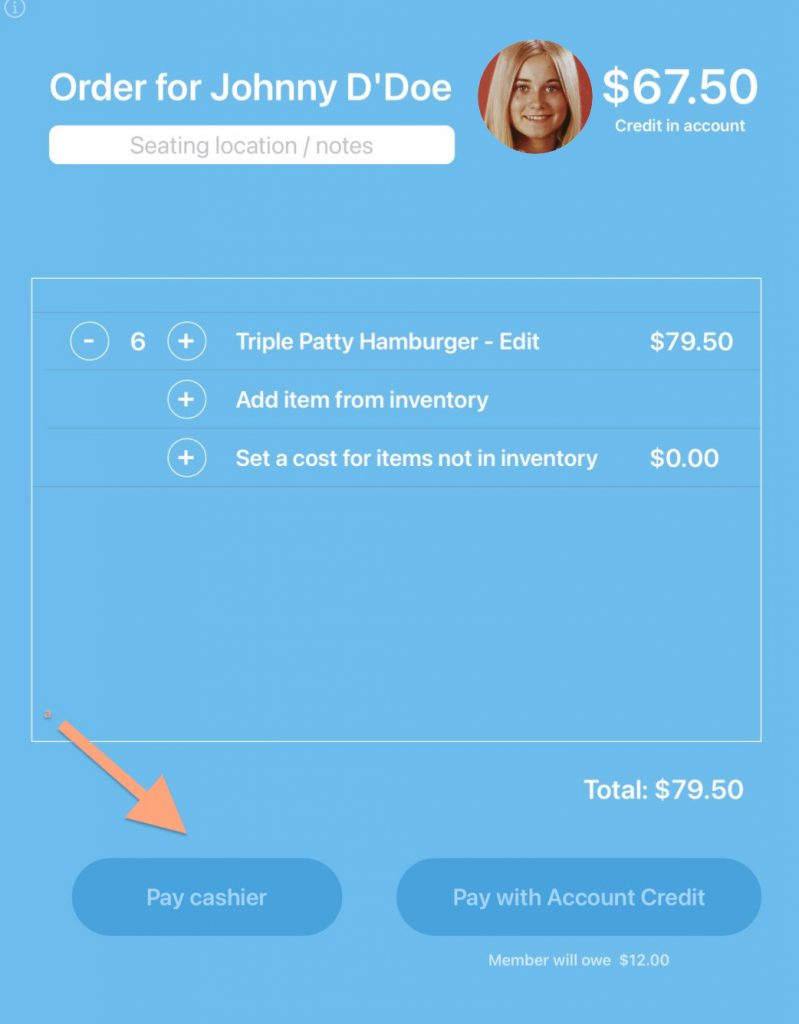
Photo verified but a PIN is an option
On the create order screen, a photo of the adult or dependent will appear on the screen to verify the person asking for snacks under that account really is that member. We also recommend that concession stand ordering is disable to any household already checked into the pool. These two verification points should be enough to grant the member snacks under their account.
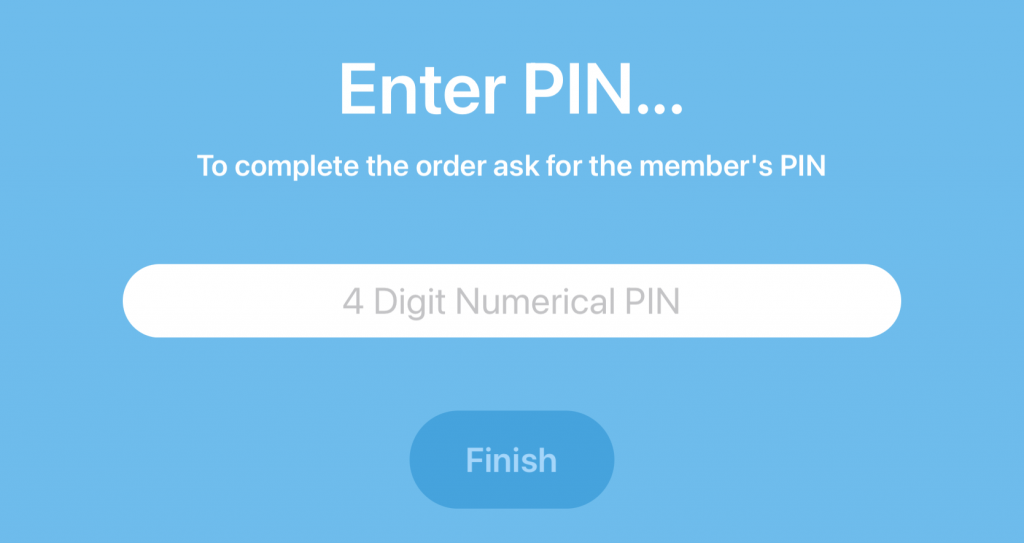
If your club feels this isn’t enough, you can ask for a Front Desk PIN from the Member. This 4 digit can be set by the member themselves in their Account. Also the club can choose to show this code on the Member Dashboard to remind them. The staff can also choose to override the member PIN with a PIN only staff knows to push an order through.
Learn more about Front Desk App settings.
Learn about invoicing for unpaid guest or concession balances.
Learn more about household concession balances.
Learn about logging concession changes.
