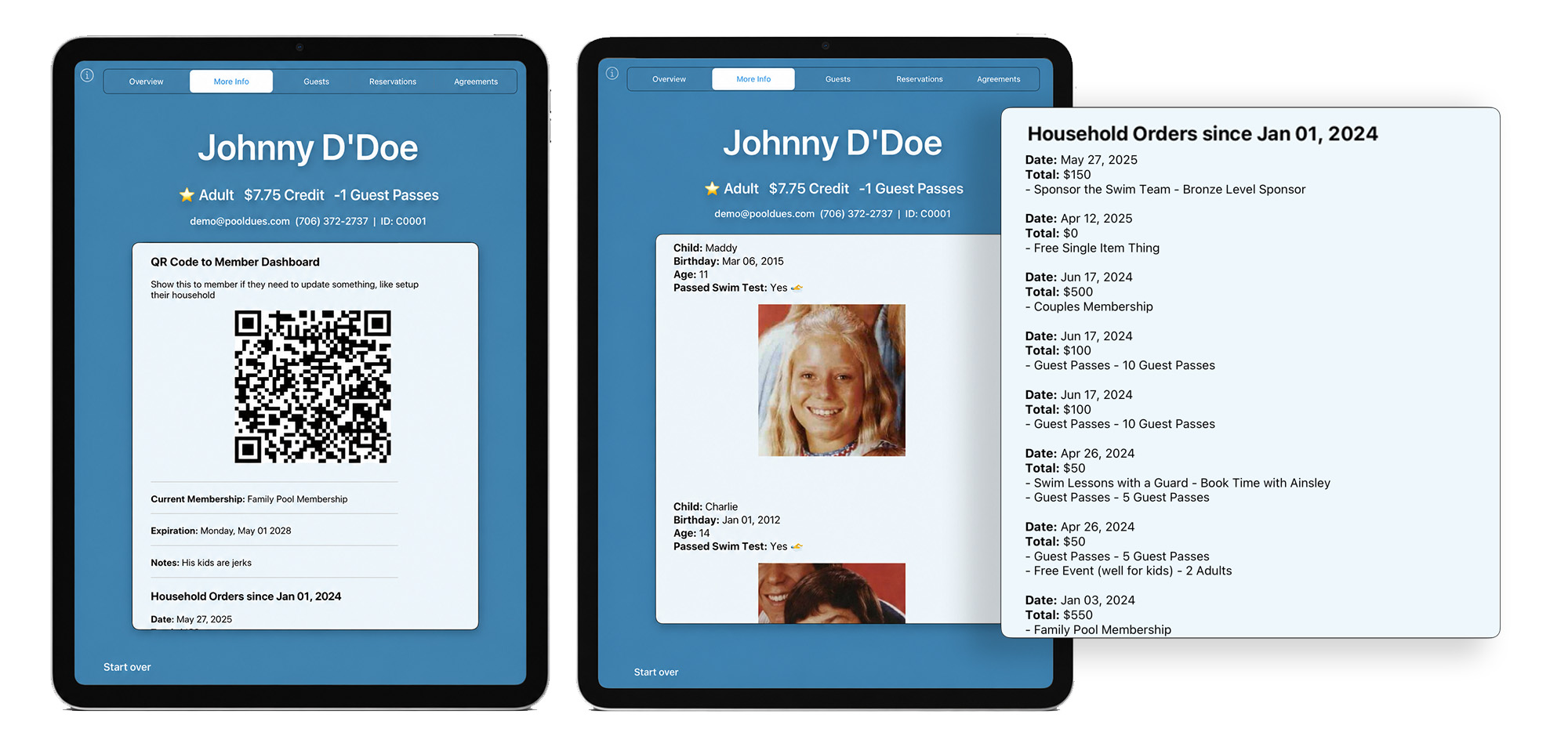
When checking members in through our Front Desk App you can now “hook in” custom data from your PoolDues-powered website into various sub-sections accessible from a tabbed out top bar.
By default these tabs are labeled…
- More Info
- Reservations
- Agreements
These labels are also customizable and can contain completely different data than what we had in mind.
Getting Started
To play around, you will need an iPad handy with our app installed and Board Member access to your website with the Front Desk capabilities toggled on.
Then from your site’s Board Member Dashboard, go to the Front Desk Dashboard > App Hooks / Staff Instructions.
In the screenshow below, you can see we are adding a new hook in the Staff Instructions panel. Depending on the hook type, some other options such as a Date Range or True / False text will be an option.
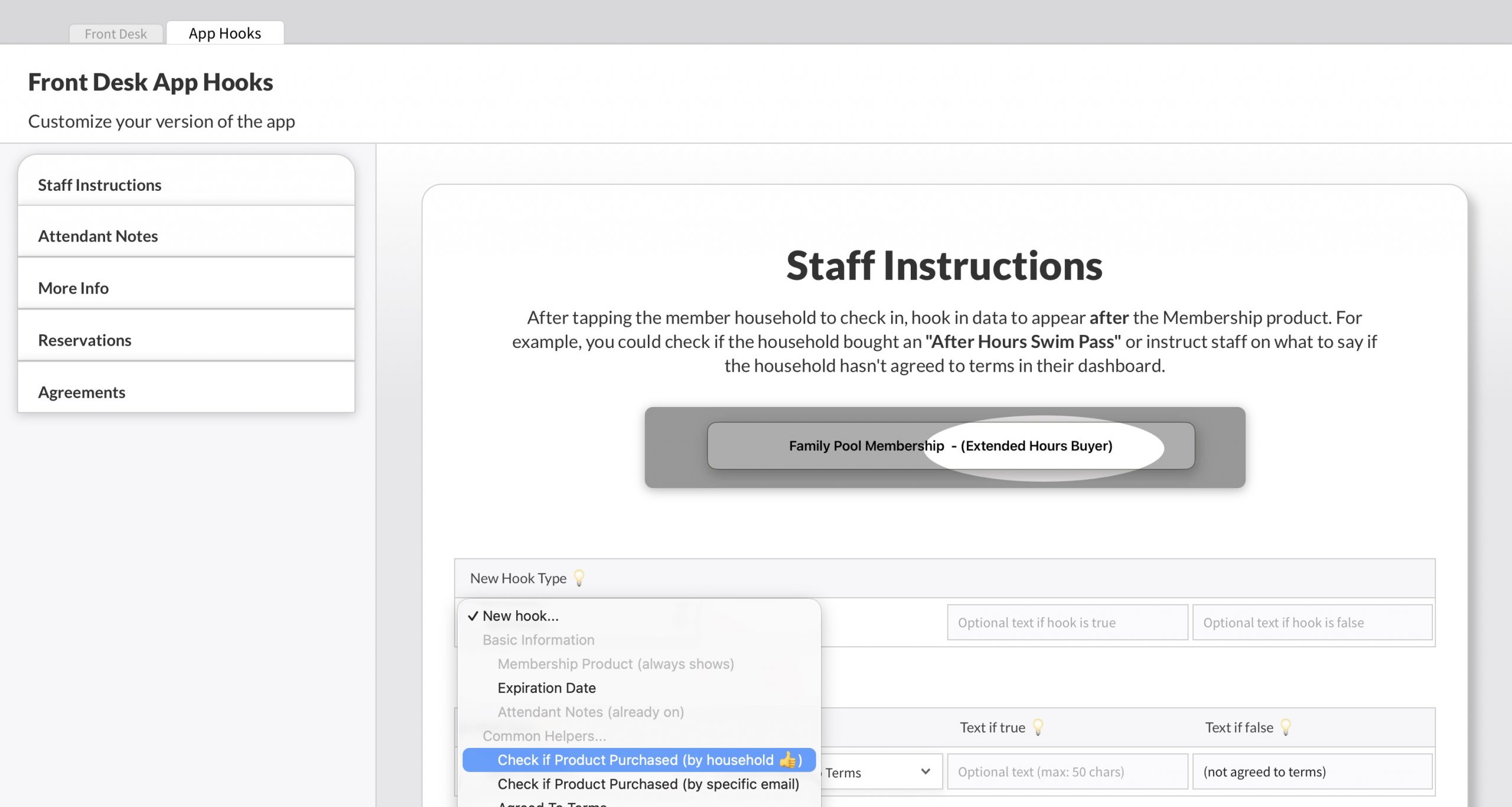
Experimenting with new hooks is harmless but we would recommend doing so while members are not actively checking in.
Once your facility is closed for the day, add some new hooks, then look up a member such as yourself or another Board Member in the app (you don’t need to actually check them in).
Many data hooks output either a true text field and/or a false text field. Both fields are customizeable but adding text for both cases is rarely needed. So for example, if the member purchased a “Know the Wifi Password” product, the staff could be instructed to tell the member the wifi-password. The true text might say “Tell member password is GoDolphins” whereas the false text is blank (as it would be unnecessary to tell them anything).
Other hooks just fetch data, for example, whether or not the member reserved the facility that day. Some hooks avail themselves to short amounts of data that can be shown in any area, whereas others could output text that would potentially be too long to initially show to staff. Hooks such as showing a household’s entire Product Order History are only available in sections like the “More Info” tabs.
Staff Instructions
The Member Info screen is where all this custom data can appear. If you aren’t familiar yet with the app, it appears just prior to tapping which household members are entering the facility.
At this stage, we have always shown the membership type the household has purchased. This product title is one of the first and most important points of data staff sees, as a lot can potentially be implied from the title alone – if it says “Weekday-Only Membership” and the member is trying to enter on a Saturday, staff could catch that here.
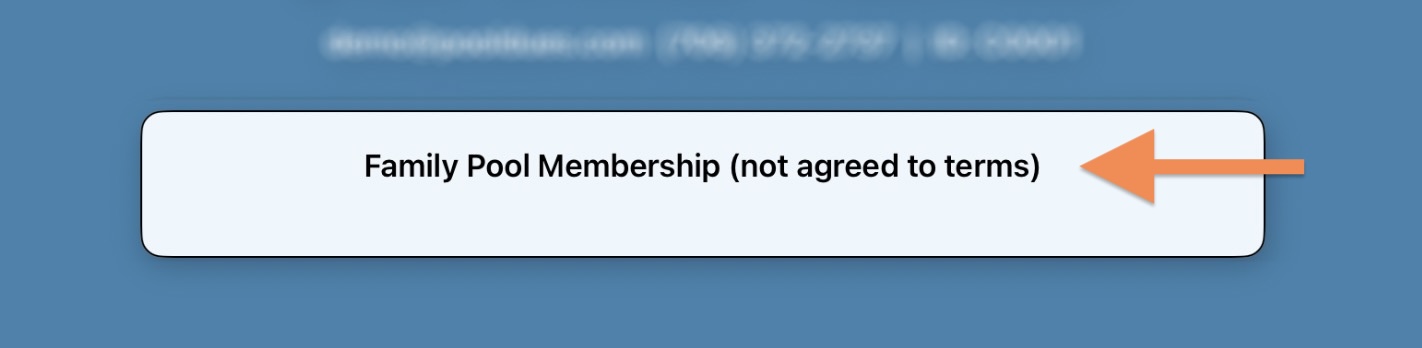
Now your club can add what appears after that product title, which will most likely be instructions to staff based on info about that specific member. The panel (seen above) will expand height-wise to accomodate more text but only to a point, and then the text will be scrollable.
This area is still intended for staff to get quick glance at the most important information, and if need be, use other tabs for more info or further instruction on how to handle different scenarios.
We think some of the most useful information will be the following…
- Agreed to Terms – Most of our clients have members agree to terms at checkout, but for those that take paper-money like checks, those orders have been put into the system manually and the member might not have agreed to anything digitally or otherwise. This data hook will check if the member has agreed to either the terms presented to them in the Member Dashboard or via an order. If they have agreed already, staff probably does not need to know. If not though, staff could see a message like “Not Agreed to Terms, see instructions in more info tab”. So in this case, you might include more detailed instructions, like scanning a QR code to the member dashboard in another tab.
- Product(s) Purchased – Staff could quickly see whether or not any product has been purchased and respond accordingly. The app could check if the household purchased a “July 4th Family Entrance Fee”, “Before Hours Lap Swim Pass”, “Free Soda Refills“, “Locker Rental”, etc. As mentioned earlier, both if-true and if-false text fields are available. So you could even check if the family has purchased any concession credit ever, and if not, staff might be instructed to say “Did you know you can buy credit by scanning this QR code” (the QR code could be hooked into the More Info tab). There is no limit to the number of products you can check for.
- Today’s Reservations – Most of our clients allow members to host birthday parties or rent the clubhouse, so this hook will be useful to show staff that the member has a reservation that day. Or if access to the tennis courts is also gated off by the front desk, this could show staff that the member entering has made a reservation on the courts (thus might not need to check in to the pool).
- Guest Limit Policy – This data-check can let staff know the household has exceeded the facility’s recommended number of guests for the current day, current year (Summer, really) or within a custom date range. Some clients limit guests during specific holiday weekends or early Summer, which is where the date range could be useful. This instruction-point lets staff know the member is over a limit but of course enforcement is another issue. Staff might simply remind the member checking in that they have exceeded the limit. The goal here is not to pit staff (neighborhood teenagers) against adults (neighborhood parents) so this data point will not outright prevent the device from logging guests.
As you can see from the hooks in the screenshot below, some fields for Text if True are blank and some fields for Text if False are blank.…
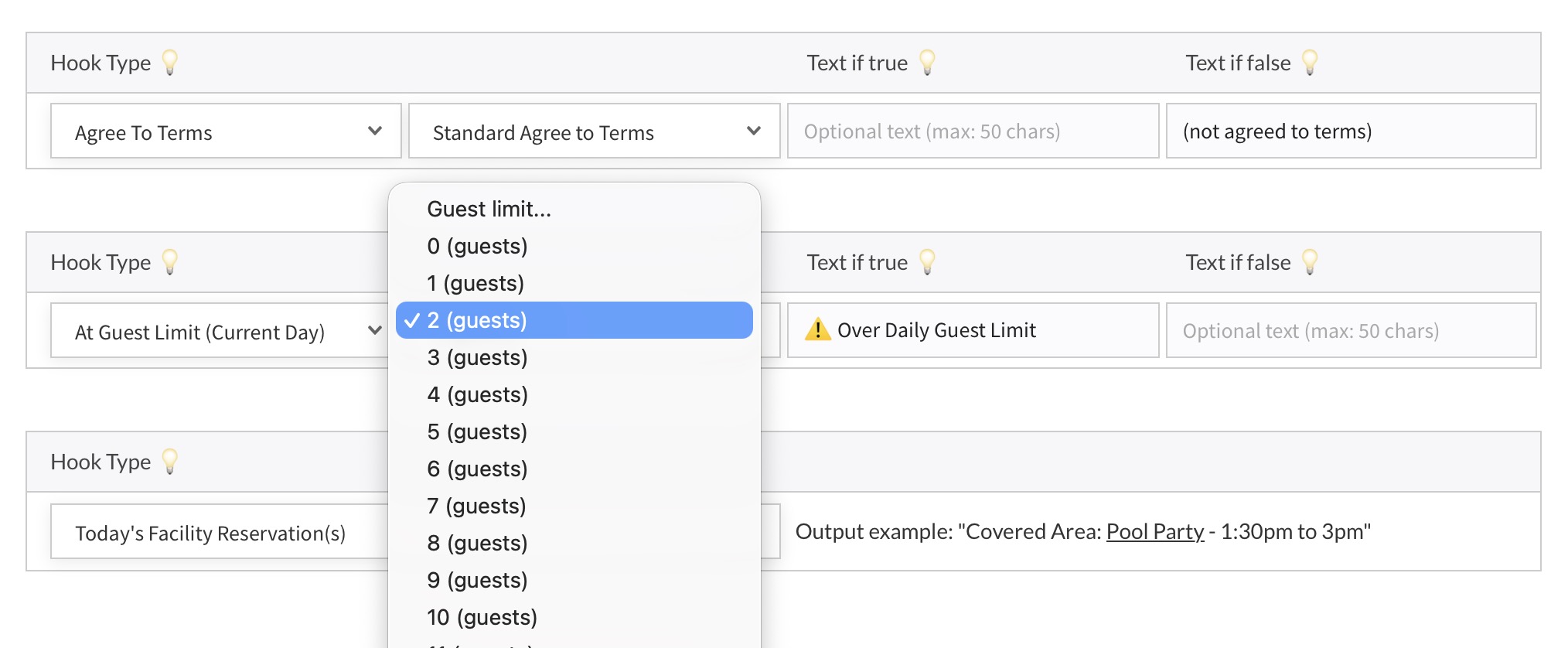
Adding unnecessary text will keep important data from standing out – so for example if the member is under their daily limit of guests, leave the field blank.
More Information Tabs
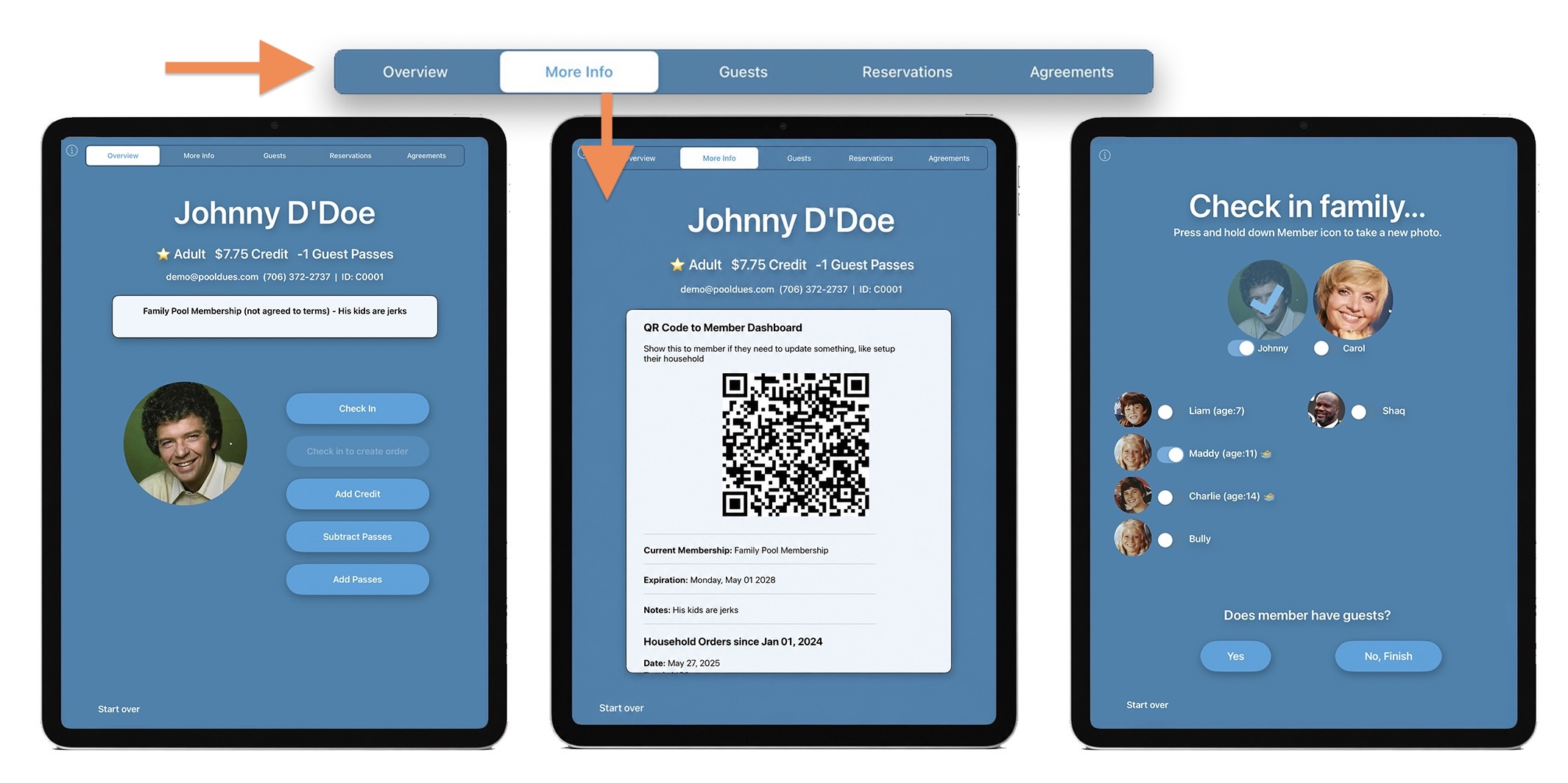
Using the image below for reference, you can see the initial Member Information screen (the first step in checking in a household), then following the arrows the More Info tab opens a scrollable section with whatever extra information you want staff to see. Tapping out of this field (or back to the Overview tab) staff can finish checking in the household.
As mentioned above the More Info, Reservations and Agreements tabs are just suggested labels for each scrollable section and your club can customize what appears in each one. The available hooks will be the same, so for the sake of this article, we don’t need to discuss each separately.
At the time of this writing, the following hooks are available….
- Membership Product
- Household List
- Expiration
- Attendant Notes
- Check if Product Purchased (by Household)
- Check if Product Purchased (by Email of Member Searched)
- Agreed to Terms
- Check in Time Today
- Time Elapsed Since Check In
- Past Orders by Date Range
- Inventory Sold to Household from Start Date
- At Guest Limit (Today)
- At Guest Limit (This Year)
- At Guest Limit (By Date Range)
- Any Reservation Today
- Any Reservation Today (Facility Grids only)
- Any Reservation Today (Tennis Grids only)
- Any Reservation Today (Swim Grids only)
- Any Reservation Today (Fitness Grids only)
- Is Resident
- Is Bond Holder
- Is Renting
- Is Renting Out Membership
- QR Code to Member Dashboard
- QR Code to Setup Household
- QR Code to Purchase Guest Passes (page on your website)
- QR Code to Purchase Concessions (page on your website)
- Check if a Specific Form Has Been Submitted by Household
- Results of a Form Being Submitted (lists the form’s questions and in-line answers)
